Asset Library
Every image for a brand lives in one place: the Asset Library. Everything you pick - a logo, your Visual Voice images, an image on a post - comes from here.
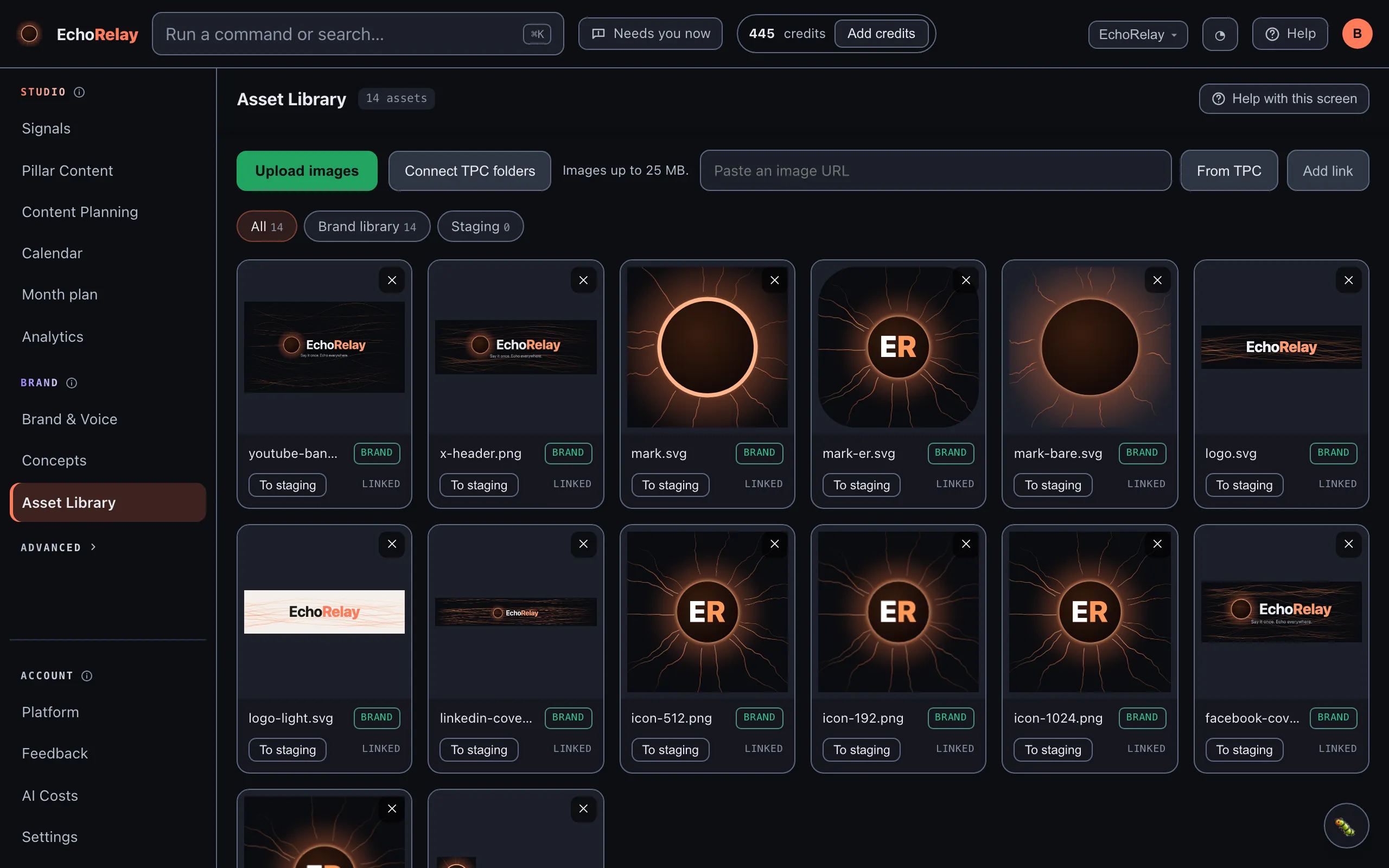
Getting images in
Section titled “Getting images in”- Upload files directly (PNG, SVG, JPEG, WebP).
- Pull from your website - paste your site, or a few key pages one per line, and EchoRelay pulls each page’s real images, skipping icons and tiny graphics.
- Paste a direct image URL to link a single image.
Connecting the TPC library (only the folders you choose)
Section titled “Connecting the TPC library (only the folders you choose)”The TPC shared library is visible only to the Perception Collective account.
- Click Connect TPC folders.
- Pick a TPC brand (e.g.
benlenzo.com). - Tick the specific folders you want - just those folders’ images are linked into this brand, not the whole library.
Different brands can connect to different folders. To pull in files added to TPC later, re-connect the folder.
Viewing an image
Section titled “Viewing an image”Click any image to open it full-size at its real shape. The viewer shows:
- Its resolution (W × H) and aspect ratio.
- A “Perfect for” line with the platforms that shape suits, shown with their icons.
- Left/right arrows (or the arrow keys) to move through the library.
- A Delete button, right there.
Picking an image for a post
Section titled “Picking an image for a post”On a post, Use from library shows this same library. Each image’s ratio badge turns green when the image fits the platform of the version you’re editing - so you pick the right shape at a glance.